Django Log Panel


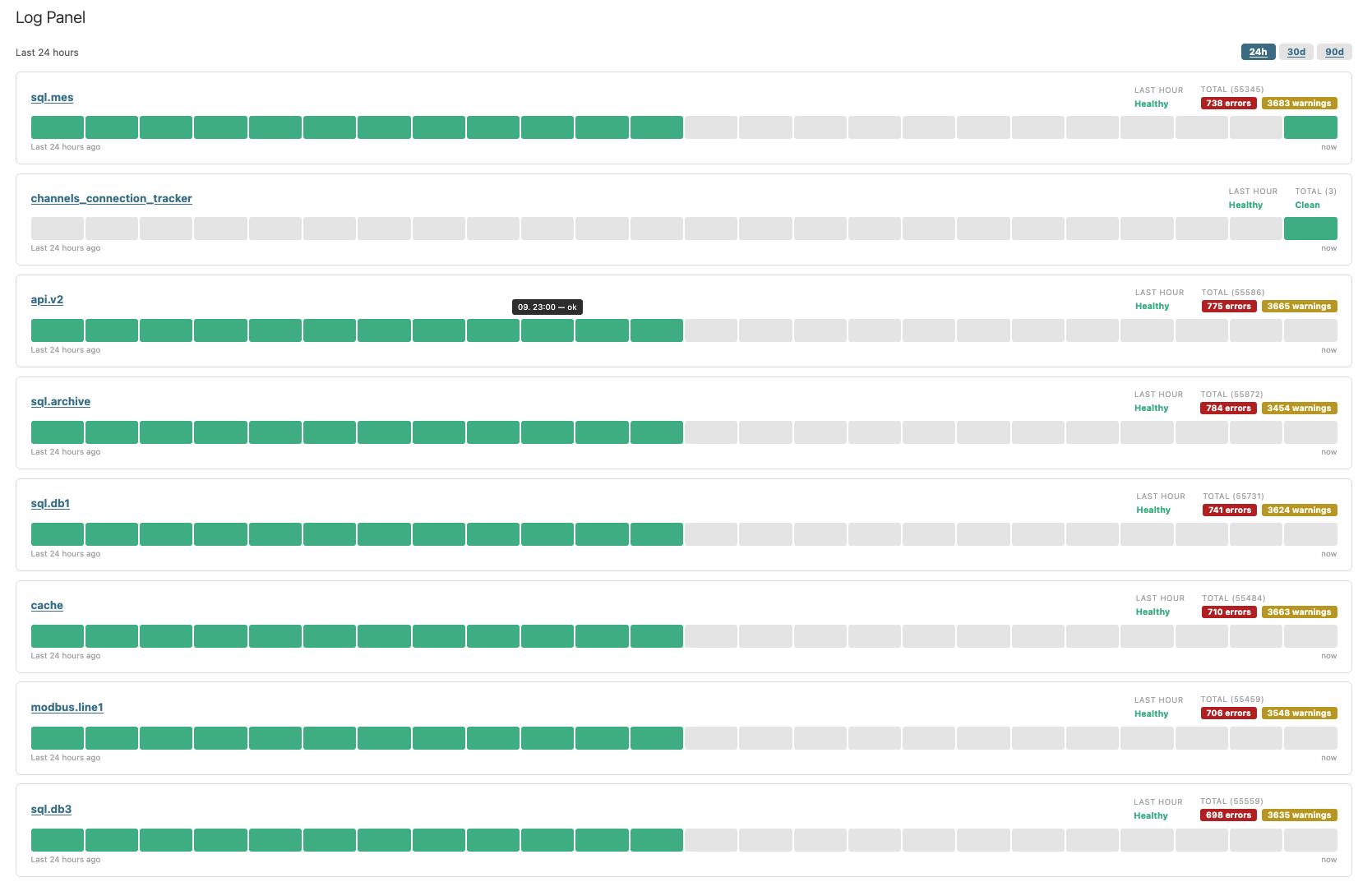
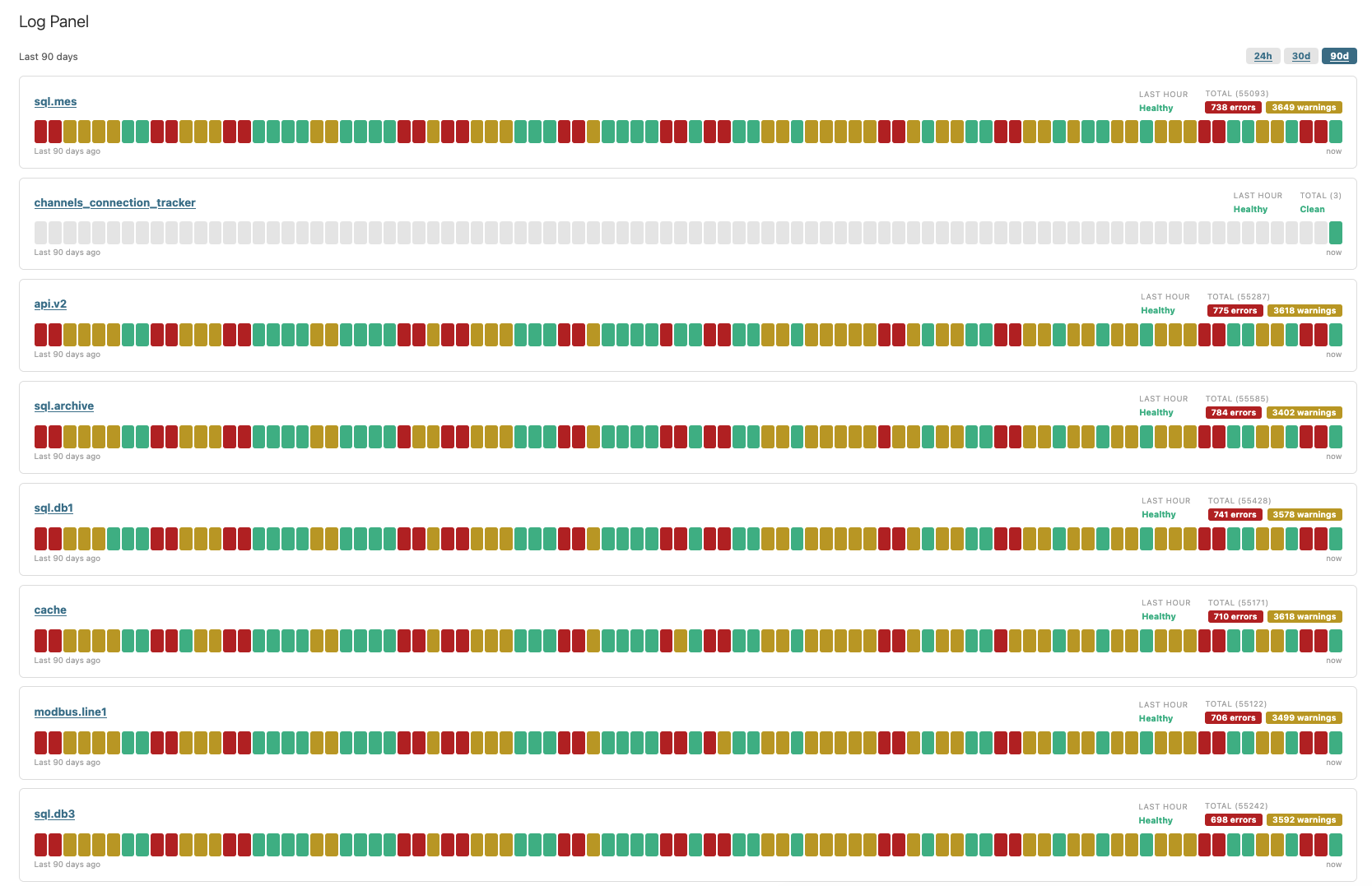
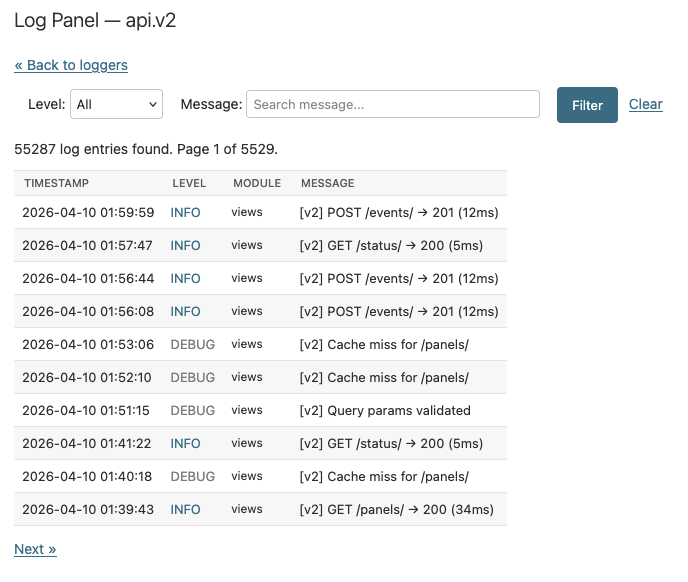
django-log-panel displays your Django logs inside Django admin as a per-logger status dashboard with searchable log entries and optional threshold alerts.
Features
- A status-page style dashboard in Django admin, with one health card per logger.
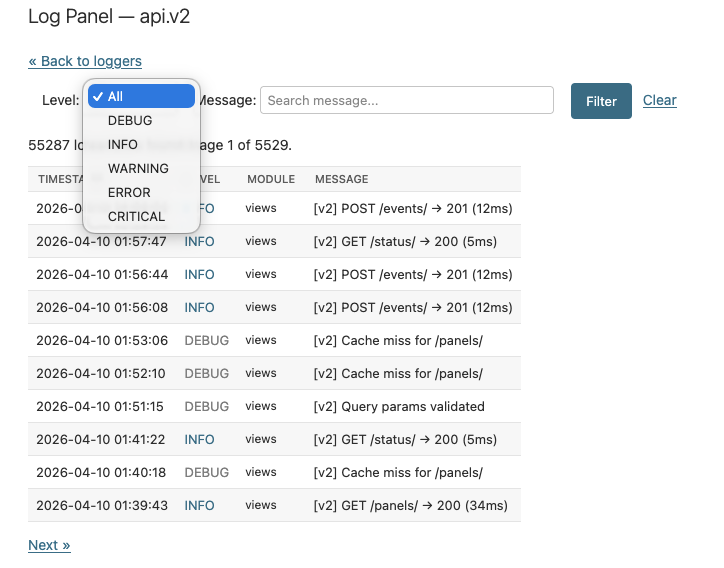
- A searchable, filterable log table for drilling into individual entries.
- MongoDB and SQL storage backends, depending on how you want to store logs.
- Threshold alerts through a Django signal that your application can react to.
- Configurable ranges, colors, page size, title, and access control.
- Automatic root-handler setup by default, with manual
LOGGINGcontrol when needed.
Requirements
- Python >= 3.12
- Django >= 5.2
django-mongodb-backendonly when using the MongoDB backend (version must match your Django version, e.g. 5.2.x for Django 5.2, 6.0.x for Django 6.0)- A running, reachable MongoDB instance when using the MongoDB backend
Installation
For MongoDB support, install the optional extra:
Choose a backend
- MongoDB — document storage with cheap writes.
- SQL — logs in a relational database.
- Custom — write your own backend by subclassing
LogsBackend.
Both built-in backends use the same Log model, DatabaseHandler, and ORM queries. The only difference is the ENGINE in your DATABASES entry. Retention is managed by running the delete_old_logs management command on a schedule.
Quick start
1. Add the app
2. Configure one backend
Then run the migration on the logging database:
To delete old logs, run the cleanup command on a schedule:
3. Open Django admin
Go to Log Panel, or open:
Once configured, any standard Python logger that flows through the selected handler will show up in the panel.
How log capture works
LOG_PANELselects how the admin reads log data.- By default,
log_panelauto-attaches aDatabaseHandlerto the root logger at startup. - Set
ATTACH_ROOT_HANDLER = Falsewhen you want full control through DjangoLOGGING. LOG_LEVELonly affects the auto-attached root handler.- Stored fields come from the log record itself;
LOGGINGformatters do not reshape the stored data.
Full setup notes and manual LOGGING examples are in the backend guide.
What's next?
- Configuration reference — all
LOG_PANELsettings explained - Backend setup — MongoDB and SQL details, manual
LOGGINGexamples - Advanced topics — alerts, buffering, retention cleanup, admin UI
- API reference — auto-generated module docs